80G Donation Receipts in Zoho ERP: Setup, Format and Workarounds
Part of our guide: Zoho ERP for Nonprofits: The Complete Guide for Indian NGOs
An 80G receipt is the document your donor needs to claim a tax deduction. Get the PAN wrong, miss the registration number or issue one for a cash gift that doesn’t qualify, and you’ve created a problem for your donor and for your own Form 10BD later.
Most Indian nonprofits still make these receipts in Word or a receipting tool that doesn’t talk to the books. Zoho ERP generates them from the donation record itself. Here’s how that works, what the receipt looks like, and where we had to build around the product.
In short: 80G receipts come out right as shipped. Branding them is the tricky part, and there are no validation rules on donations, so you’ll want one small workflow.
What an 80G receipt needs to show
Before looking at the software, here’s the checklist we used to judge every receipt. Confirm the current rules with your CA, since the Income Tax requirements change.
- Your organisation’s name, address and PAN
- Your 80G registration number and its validity period
- A unique receipt number and the date
- The donor’s name and PAN
- The amount in figures and words
- The payment mode and reference (cash, cheque, bank transfer, UPI)
Cash donations above ₹2,000 don’t qualify for an 80G deduction, so they should be receipted as Non80G.
Step 1: Set up funds
Funds are where donations land. Create one for each grant, the CSR programme, your corpus and in-kind gifts. You can give each a target, which feeds the nonprofit dashboard.
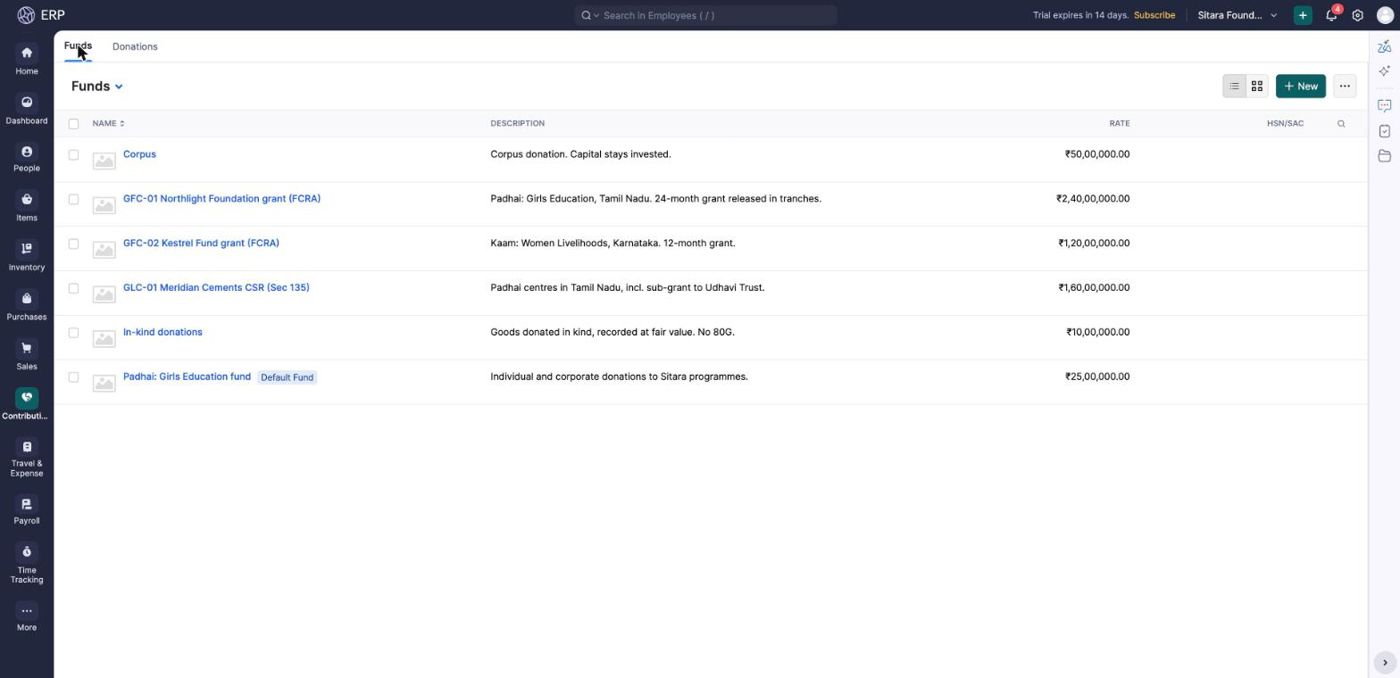 Funds with targets: two FCRA grants, a CSR grant, corpus and in-kind.
Step 2: Record a donation
Go to Contributions > Donations and create a donation. Each one carries:
- Section: 80G or Non80G
- Donation type: the Income Tax category, such as corpus, specific grant or in-kind
- Fund: where the money belongs
- Deposit to: the bank account it landed in
- Payment mode and reference: UPI, NEFT, RTGS, cheque or cash
- Reporting tags: Grant, Programme, Geography, Department and Entity
We built a finance view that shows the section, donation type, mode and reference in the list. It made month-end review much faster.
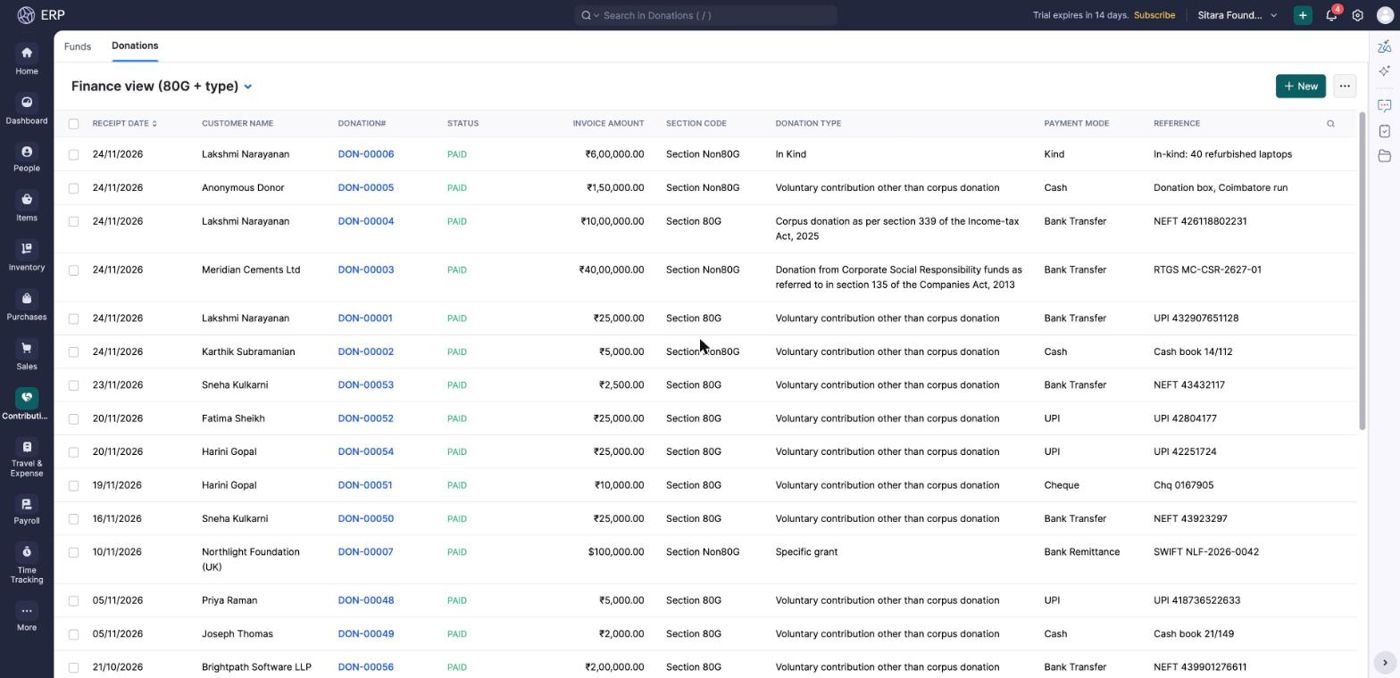 Our finance view of donations. One glance shows which gifts are 80G, which are in-kind and how each was paid.
Step 3: Print the 80G receipt
Mark the donation as Section 80G and Zoho ERP prints the statutory receipt. It pulls in your PAN, the donor’s PAN, the amount in words, the payment reference and your 80G registration text with its validity dates.
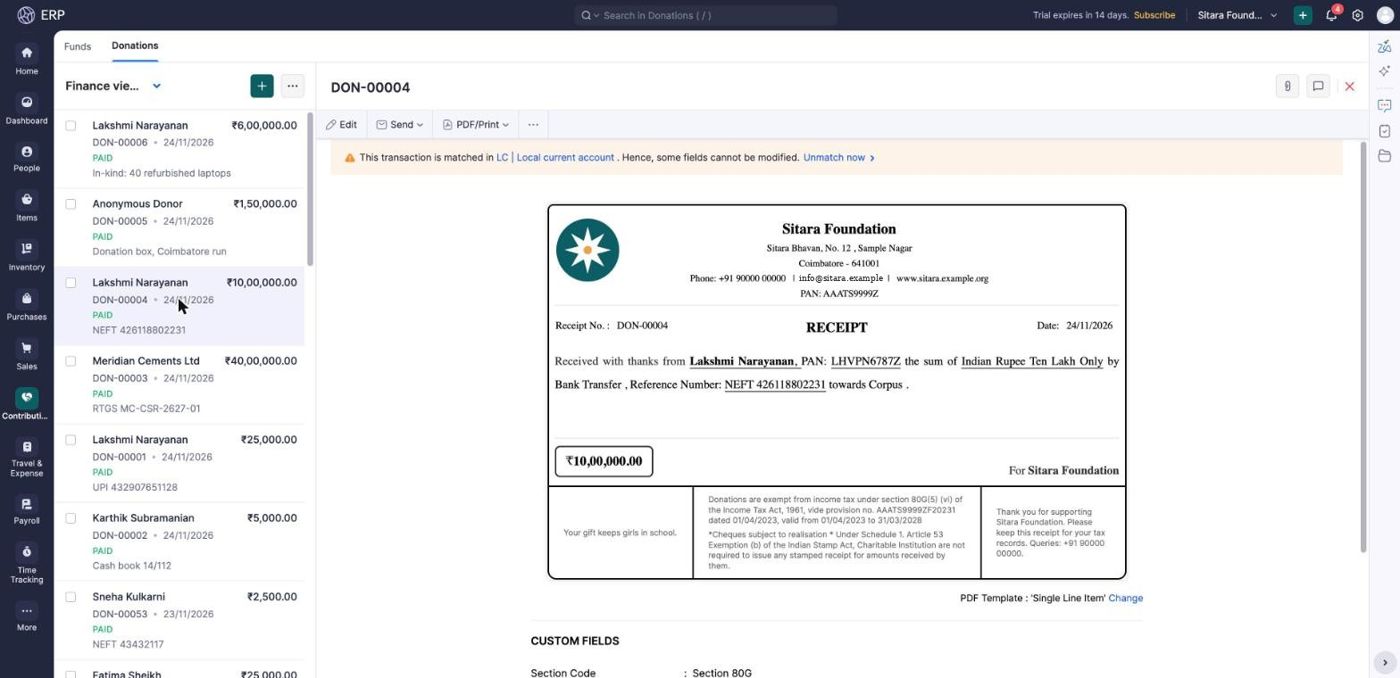 The statutory 80G receipt. Every field on our checklist is there.
The layout is locked. You control your organisation details, the notes, a short quote and the signature. Nothing else moves.
Step 4: Decide how to handle branding
If your fundraising team wants receipts in your brand colours, there’s a second option. The universal receipt template is fully editable: colours, labels, fonts and custom fields.
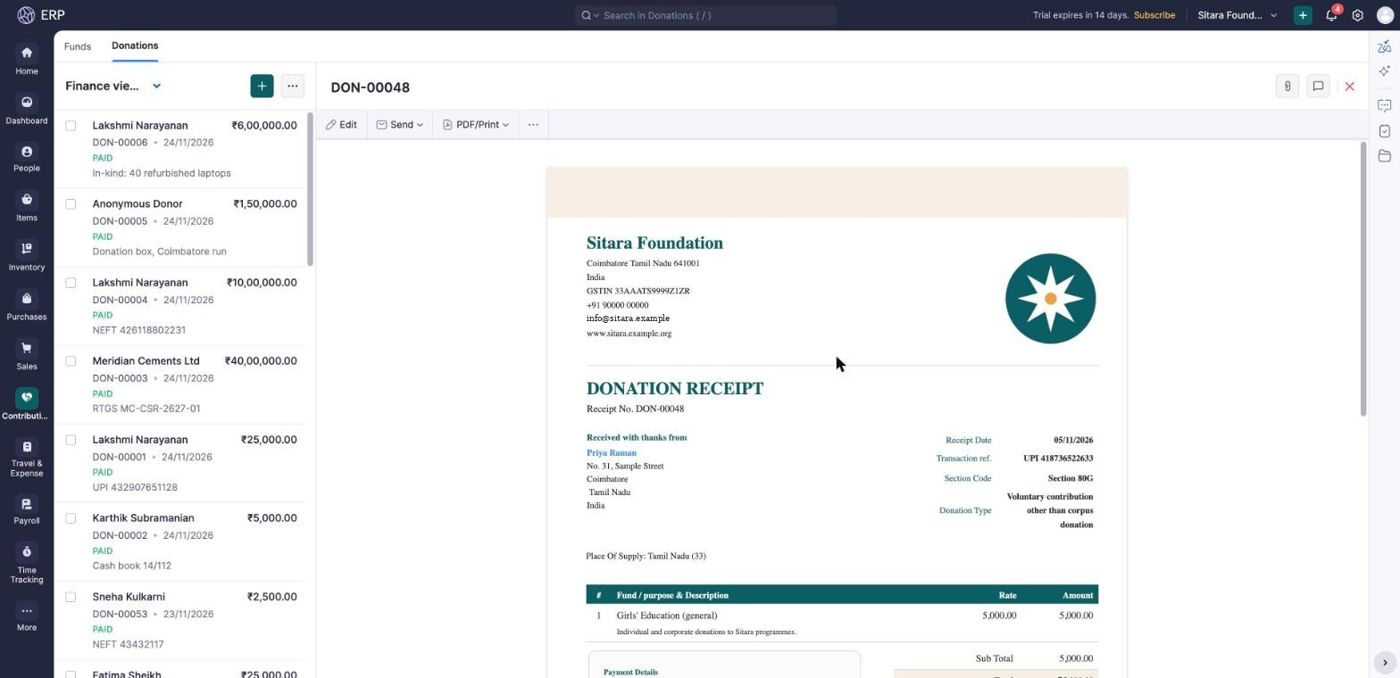 A branded receipt from the universal template. Good for thank-you notes, not for 80G.
The problem is that the universal template has no 80G wording block. So you have two choices:
- Use the statutory receipt for every 80G gift and the branded template for thank-you receipts and Non80G gifts. This is what we did.
- Add the 80G text through notes on each donation and use the branded template. It works, but it depends on someone remembering every time.
We’d pick the first option. Compliance shouldn’t depend on memory.
Step 5: Add a workflow for the cash rule
Zoho ERP has no validation rules or approvals on donations. Nothing stops someone from marking a ₹5,000 cash gift as 80G.
We built a small workflow that runs after a donation is saved. If the payment mode is cash and the amount is over ₹2,000, it switches the section to Non80G. It corrects the record rather than blocking it, so your team should still review cash donations weekly.
Foreign donations
A foreign grant tranche also lands in Contributions, but it goes to your FCRA receipt account and the receipt has no field for your FCRA registration or the INR value. We put both in the donation’s notes. The full setup is in the FCRA subguide.
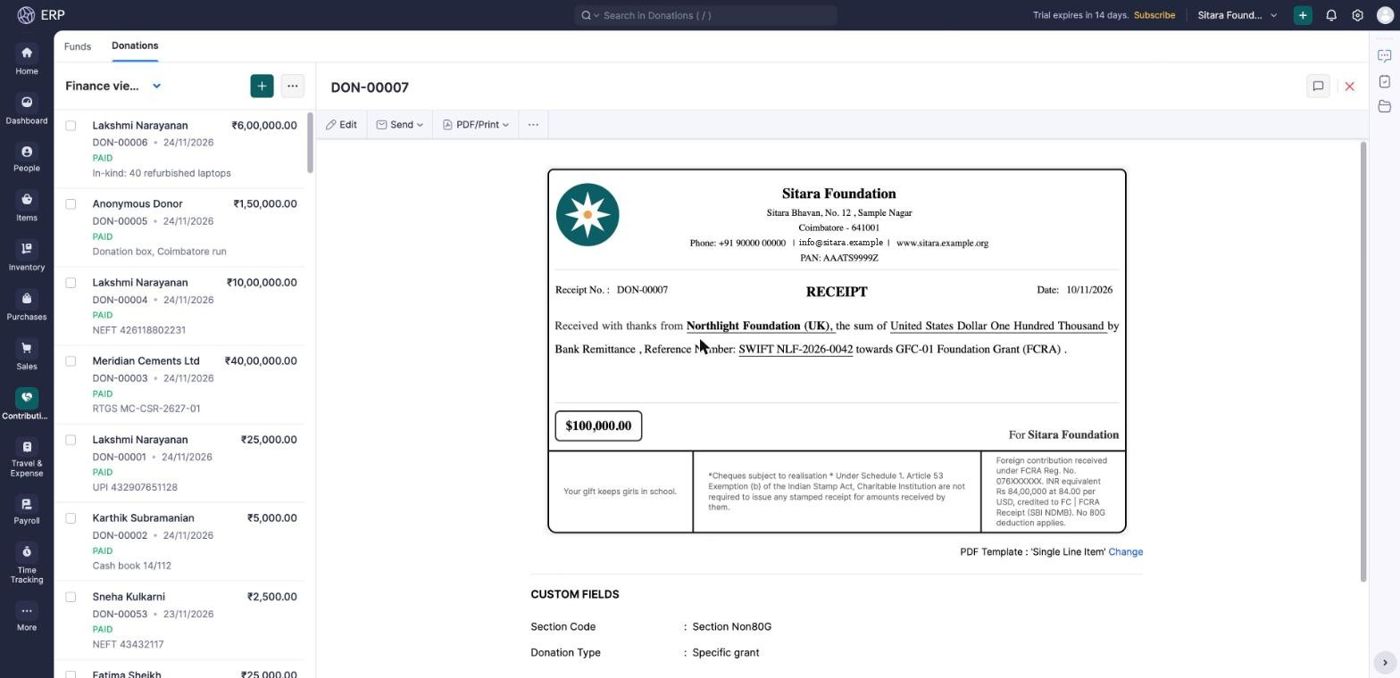 A USD grant tranche: FCRA account, INR value and registration note.
Limitations we hit
| Limitation | Workaround |
|---|---|
| Gap. The 80G receipt layout is locked; the editable template has no 80G block | Statutory receipt for 80G; branded template for thank-you receipts |
| Built around. No validation rules or approvals on donations | Workflow that corrects the 80G section after save |
| Settings. API payment-mode values create duplicate modes | Send exact display names in imports |
| Settings. Donations by Fund report can’t save customisations | Favourite it, or rebuild in Zoho Analytics |
We didn’t test Form 10BD or 10BE generation in this trial. Your donation records carry the fields those forms need (donor PAN, section, donation type, mode and amount), so plan how you’ll export them at year end.
Next in the guide
Tested on a Zoho ERP trial (India data centre), November 2026, with fictional data.