What a client help desk taught us about running nonprofit operations
We signed a support contract with a client last month. It had the usual promises in it: we’ll acknowledge a showstopper within four working hours, a critical issue within eight, everything else within two or three working days. Most small teams sign clauses like that and then run support out of someone’s inbox.
I didn’t want that. So over two days I set up a proper help desk on Zoho Desk. Every email becomes a ticket. Every ticket gets a priority, an owner and a clock. The client hears back in minutes, even on a holiday. Every minute we spend lands in our project tracker, ready for billing.
I built most of it with Claude working beside me in the browser, which is a story for another post. This one is about what we set up, what broke along the way, and why I think nonprofits need this far more than software companies do.
A help desk is a promise with a timer on it. That’s useful for a client contract. It’s even more useful when the person waiting is a volunteer with no shift, a field worker whose payment is stuck, or someone calling a crisis line.
The whole thing in one picture
One email from the client sets off everything else. Nobody forwards, copies or re-types anything.
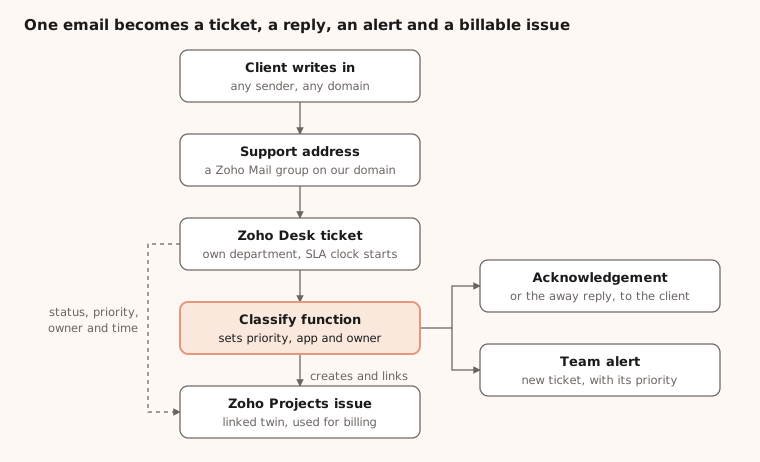
The only manual steps left are the ones that need judgement: confirming the priority, replying, logging time and moving the status. The dashed line is Desk keeping the Projects issue in step as the ticket changes.
Start with the SLA you already promised
The contract was the spec. I copied its severity definitions into Zoho Desk word for word, then turned each one into a timer. Here’s what one client SLA looks like once it lives in software instead of a PDF:
| Priority | What it means | First response | Resolution target |
|---|---|---|---|
| Showstopper | Nobody can work, or a core process has stopped | 4 working hours | 18 working hours |
| Critical | A key function is broken, no workaround | 8 working hours | 45 working hours |
| Major | Something’s broken, but there’s a workaround | 2 working days (18 h) | 63 working hours |
| Minor | Cosmetic issues and quick questions | 3 working days (27 h) | 72 working hours |
| Change request | New work, not a fix | Estimate first | No timer |
Three things made this work in practice.
Working hours, not clock hours. The SLA runs on a business-hours calendar, Monday to Friday, 9:00 to 18:00 IST. A ticket raised at 17:30 on a Friday doesn’t breach over the weekend. That’s how the contract reads, so that’s how the timer should count.
Holidays come from HR, not memory. We already keep our holiday list in Zoho People, so I copied it into Desk, including our year-end shutdown. When the office is shut, the clock stops.
The timer follows the priority. The SLA re-applies whenever someone changes the priority. If we downgrade a “critical” that turns out to be a how-do-I question, the due time moves with it. If we upgrade one, the clock tightens straight away.
Intake that sorts itself
An SLA is useless if a ticket arrives with no priority. People don’t fill in forms when something’s on fire. They write “urgent!!” in the subject and hit send.
So every new ticket goes through a small Deluge function before anyone sees it. It does four things:
- Reads the email for priority words. “Nobody can log in” or “payroll is stuck” means Showstopper. “New field” or “can we add” means Change Request. “Urgent”, “blocked” or “asap” means Critical, unless the email also says “not urgent”. “Typo” or “quick question” means Minor. The first match wins, in that order.
- Defaults to Major when nothing matches. This was the gap I almost missed. A ticket with no priority has no SLA. Now every ticket has a clock from the first minute.
- Guesses which app it’s about. Product names score three points, related words score one. “Leave balance” leans towards the HR app, “reimbursement” towards expenses. The highest score wins.
- Assigns an owner. Every ticket goes to our primary point of contact unless someone else already owns it. No ticket sits unassigned. When that person goes on leave, we change one email address at the top of the function.
The function never overrides a human. If an agent has already set a priority, it leaves it alone. It also adds a private note that says “auto-classified as Critical / HR app, please confirm”, so the person reviewing knows a machine made the first call.
Zoho Desk has a built-in AI version of this called Zia field prediction. It needs a few dozen tickets per category before it learns anything useful, so keywords made sense for week one. Once the data builds up, we’ll compare the two.
Support on your own domain
The client doesn’t need to know Zoho Desk exists. They write to one address on our domain, something like [email protected], and that’s it.
Here’s how that address is wired:
- It’s a Zoho Mail group, not a mailbox. The group’s only active member is the forwarding address Zoho Desk gives each department. Mail lands in the group and goes straight into the right Desk department.
- Personal copies are off. I first added myself and my colleague to the group too. Every client email then arrived three times: in Desk, in my inbox, in his. We switched our own delivery off and let Desk send us a single alert instead.
- Replies go out from the same address. I set the group address as the department’s default “from” address and as the sender on every template. Our first test went wrong here: the acknowledgement went out from Desk’s generic address, the client replied to that, and the reply opened a brand-new ticket in the wrong department. One setting fixed it.
- Threading rides on the ticket number. Every outgoing subject carries a tag like [##305##]. As long as the client replies in the same thread, the reply attaches to the right ticket.
- Any sender, any domain. Our client works across several email domains, so I dropped my first idea of only accepting mail from their domain. The only senders we skip are automated ones like noreply and mailer-daemon, which become tickets but don’t get a project issue.
The last lesson came the day after launch. I tested from my personal Gmail and nothing arrived. The group was fine. Zoho Mail’s spam filter had quarantined the email for “display name spoofing”: an outside address using my name, which matches a user in our organisation. Going through the quarantine list, I also found real partner emails held for failed SPF checks. If you set up a support address, add your client’s domains to the allowlist in Spam Control, and check the quarantine once a week.
Emails people actually read
The client sees four automatic emails, and each one answers the question they’d otherwise ask us.
| When it goes out | What it answers | |
|---|---|---|
| Acknowledgement | New ticket, during working hours | Did you get it? What priority is it? What else do you need from me? |
| Away reply | New ticket or reply outside working hours or on a holiday | When will someone look at this? |
| Closure | Ticket closed | Is it done? How did we do? (with a one-click rating) |
| Agent reply | Whenever we write | Who’s handling this? (signed, from the support address) |
The acknowledgement does the most work. It carries the ticket number, the priority we’ve set, the app we think it’s about, and a short checklist: what happened, steps to reproduce, a screenshot, who’s affected, whether there’s a workaround. Half of support is getting that information on the first exchange. It also has a short guide to our priority levels and one line asking people not to email passwords, ID numbers or bank details.
Getting the priority into that email took a fix. Desk sends workflow emails before custom functions finish, so the first acknowledgements went out with a blank priority. The fix was to make the function tick an “auto-classified” box at the end and fire the emails off that tick instead of off ticket creation. Now the email always shows the priority the function chose.
The emails use our brand: the EdZola wordmark, our colours, our support hours in the footer. Agent replies carry a signature, so the client always knows a person wrote it. We also have three reply templates for common moments: confirm priority and ask for details, “fixed, please test”, and “this is a change request, estimate to follow”. Each has blanks to fill in, and nothing goes out without someone reading it first.
Knowledge that doesn’t live in one head
The person running this support goes on leave soon, and someone new will cover. That was the real test of the setup: could a stranger run it from day one?
I wrote four internal articles in the Desk knowledge base, visible only to agents:
- Start here. What this support covers, how a ticket flows, who does what.
- Apps we configured. Each app we built for the client, with links to Zoho’s own help pages.
- Handling a ticket. Step by step, from the email arriving to closure, including how auto-classification works and where to log time.
- Known issues. Problems we’ve seen before and how we fixed them. This is the one that grows. Every time a fix repeats, it goes in here.
Two rules kept it clean. No contract terms, rates or invoices go into Desk, ever. And the articles describe the setup as it is, so they get updated the same day the setup changes.
The articles show up as suggestions beside every ticket, so the knowledge comes to the agent instead of waiting to be searched. Alongside them I made a short walkthrough deck with screenshots of every screen and every rule, so the handover takes an hour, not a week.
This base pays off twice. Zoho Desk’s Answer Bot can answer questions from your articles, and only from your articles, on a help centre or website widget. Zia can also turn a resolved ticket into a draft article. So the work you do answering one person becomes the answer the next person finds on their own.
One place for time, one place for truth
This contract bills by the hour, and our hours live in Zoho Projects. I didn’t want anyone logging time twice, or forgetting to.
So each Desk ticket gets a twin issue in the client’s Projects project, created automatically and linked both ways. From then on, Desk drives:
- Status follows. Waiting on the client in Desk means On hold in Projects. Resolved means To be tested. Closed means Closed. A client reply on a closed ticket reopens the issue.
- Priority and owner follow. Change either in Desk and the Projects issue updates.
- Time follows. You log time on the ticket, in Desk, while you work. A function copies each entry to the linked issue with the right date, the right person and the billable flag. If the issue is already closed, it reopens it, logs the time and closes it again. Then it leaves a private note on the ticket saying “time synced”, or “failed” with the reason.
That last note matters more than it looks. A sync you can’t see is a sync you can’t trust. One glance at the ticket tells you whether billing has the hours.
One honest limit: only new time entries copy over. If you edit or delete an entry in Desk, fix the Projects log by hand. It’s written into the handover notes.
What tripped us up
Two days sounds neat. It wasn’t. Here’s what broke, so you don’t have to find it yourself.
| What happened | Why | The fix |
|---|---|---|
| Acknowledgements showed a blank priority | Desk sends workflow emails before custom functions finish | Fire the emails off a tick box the function sets at the end |
| A client reply opened a new ticket in the wrong department | The acknowledgement went out from Desk’s default address | Make the support address the department default and the template sender |
| Every email arrived three times | Agents were members of the mail group as well as Desk | Turn off personal delivery in the group, keep one Desk alert |
| Tickets with no priority had no SLA | People don’t fill in priority | Default every ticket to Major, then refine |
| A test email from Gmail vanished | Mail spam filter flagged display-name spoofing | Allowlist client domains, check quarantine weekly |
| Time logs failed on some tickets | Projects won’t log time on a closed issue, and wanted a different user ID | Reopen, log, close again, and match users by email |
| Agents couldn’t test the rating link | Desk blocks agents rating on a customer’s behalf | Test from a private window with a non-agent email |
None of these show up in a demo. All of them show up in the first week with a real client.
Why nonprofits need this more than we do
For us, a missed SLA means an awkward call with a client. For a nonprofit, the person waiting is often the person the work exists for. Most organisations we work with already run some form of help desk. It just lives in a WhatsApp group, a shared inbox, or the phone of whoever’s been there longest.
Here’s how the same pieces map to work nonprofits do every day. The SLAs are examples to adapt, not rules. You can see each one as a screen on our help desk and grievance systems page.
| Help desk | Who writes in | Example SLA | What to automate first |
|---|---|---|---|
| Volunteer support | Volunteers asking about shifts, onboarding, certificates | First response in 1 working day | Acknowledgement with a FAQ link; tag by programme and city |
| Field staff and partner operations | Coordinators reporting app issues, stock-outs, payment delays | Blocked work: 4 hours. Everything else: 2 days | Route by district to the right manager; escalate if untouched |
| Beneficiary grievances | Community members, often by phone or WhatsApp | Acknowledge in 24 hours, resolve in 7 days | A fixed process with mandatory steps before closure; a monthly report for the board |
| Crisis or helpline follow-up | Callers needing referrals or a call back | Urgent: same day, every day including holidays | A separate department with its own 24x7 calendar and on-call owner |
| Donor and CSR queries | Donors asking for receipts, tax certificates, utilisation reports | Receipts in 2 working days | Templates for each document; priority bump for institutional donors |
| Internal HR and IT | Staff asking about leave, payroll, laptops, logins | 1 working day | A department per function so HR queries stay private |
A few things change when you design for these.
Each audience gets its own department. Its own address, hours, SLA and knowledge base. A crisis line can’t share a Monday-to-Friday calendar with donor queries.
People write in on WhatsApp, not email. Desk can bring WhatsApp into the same ticket queue, though outbound messages need templates approved by WhatsApp first. Phone calls can be logged as tickets too, so the timer starts even when the request was spoken.
Sensitive data stays out of email. Our acknowledgement already asks people not to send ID numbers or bank details. For grievance or health work, use a web form with only the fields you need and restrict who can see the department.
Grievances need proof of process. A Blueprint makes a ticket pass through set stages, and an agent can’t close it until required fields and notes are filled in. That’s the audit trail a funder or regulator will ask for.
What else Zoho Desk can do
We used a small part of Zoho Desk for this build. While digging through it, these stood out for nonprofit work:
| Feature | What it does | Where it helps |
|---|---|---|
| Guided Conversations | A no-code chat flow on your website or app that asks set questions, collects details and creates a ticket, 24x7 | Volunteer sign-up questions, donor receipt requests, a grievance intake that asks the right things in the right language |
| Answer Bot | Answers questions from your knowledge base only, on a help centre or widget, in 29 languages | FAQs for volunteers or field staff, outside office hours |
| Zia sentiment and summaries | Reads the tone of a ticket and condenses long threads | Spotting distress in a beneficiary message; catching up on a ticket after leave |
| Zia field prediction | Learns to set category, owner and type from past tickets | Replaces keyword rules once you have enough history |
| Zia unusual-activity alerts | Flags spikes against predicted daily volume | An early warning when one district or programme suddenly floods the desk |
| Blueprint | Forces tickets through set stages with mandatory steps | Grievance redressal, safeguarding reports, refund or reimbursement approvals |
| Customer happiness ratings | One-click rating on every closed ticket | A simple service-quality number for your board or funder |
| Departments and business hours | Separate queues, addresses, calendars and SLAs | A 24x7 helpline beside a Monday-to-Friday HR desk in one account |
| Time tracking | Logs effort per ticket, billable or not | Showing a funder what support actually costs |
If you’re a registered nonprofit new to Zoho, check the Zoho for nonprofits credits before you pay for licences. Eligibility rules change, so confirm the current terms when you apply.
Start with one queue
You don’t need all of this on day one. If I were setting up a help desk for a nonprofit tomorrow, I’d do it in this order:
- Write the promise down. One page: who writes in, what counts as urgent, how fast you’ll respond, which days you’re closed. If you can’t write it, no tool will fix it.
- Pick one audience and give it one address. Volunteers, or field staff, or donors. Not all three.
- Write the acknowledgement email. Ticket number, what happens next, what you need from them. This one email removes half the back-and-forth.
- Default every ticket to a priority and an owner. Unsorted and unowned is where requests go to die.
- Write four knowledge articles. Start here, how to handle a ticket, the tools you use, known issues.
- Review it every Friday. Breached SLAs, low ratings, anything stuck in spam quarantine.
Then add the next audience, and the next. Each one is a new department with its own address, hours and SLA, and the same habits underneath.
If you’d like help setting up a help desk like this for your organisation, see how we set up help desk and grievance systems. I’m happy to show you ours.